

- Unified AI Gateway - Single interface for 1600+ LLMs with API key management
- Centralized AI observability: Real-time usage tracking for 40+ key metrics and logs for every request
- Governance - Real-time spend tracking, set budget limits and RBAC in your Roo setup
- Security Guardrails - PII detection, content filtering, and compliance controls
If you are an enterprise looking to standardize Roo usage across your development teams, check out this section.
1. Setting up Portkey
Portkey allows you to use 250+ LLMs with your Roo setup, with minimal configuration required. Let’s set up the core components in Portkey that you’ll need for integration.1
Create Virtual Key
Virtual Keys are Portkey’s secure way to manage your LLM provider API keys. Think of them like disposable credit cards for your LLM API keys, providing essential controls like: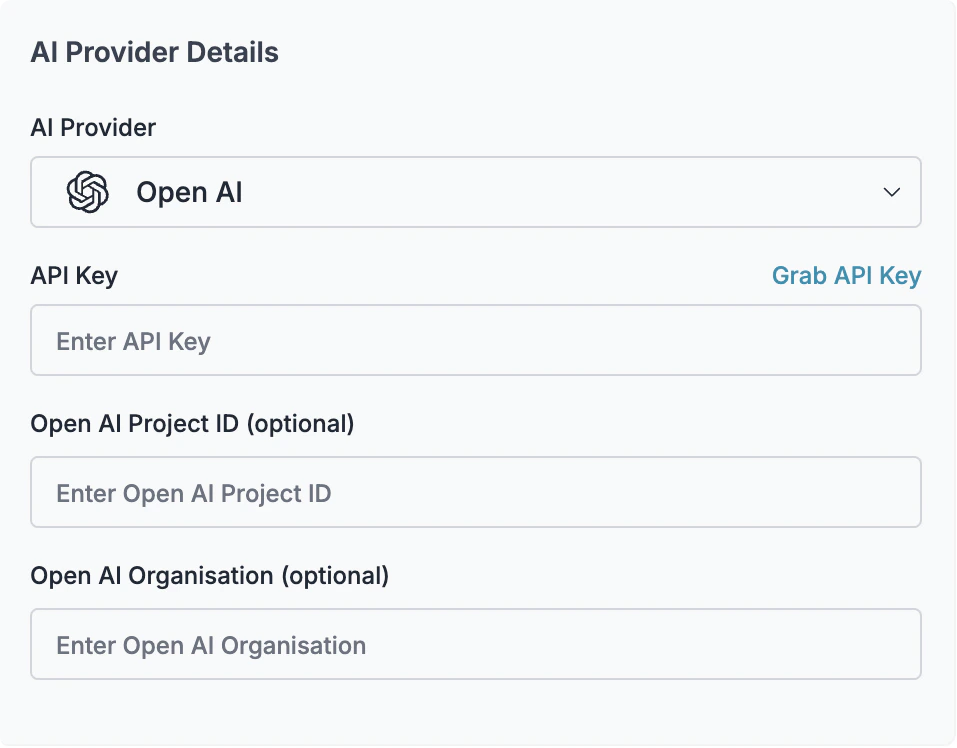
- Budget limits for API usage
- Rate limiting capabilities
- Secure API key storage
Save your virtual key ID - you’ll need it for the next step.
2
Create Default Config
Configs in Portkey are JSON objects that define how your requests are routed. They help with implementing features like advanced routing, fallbacks, and retries.We need to create a default config to route our requests to the virtual key created in Step 1.To create your config: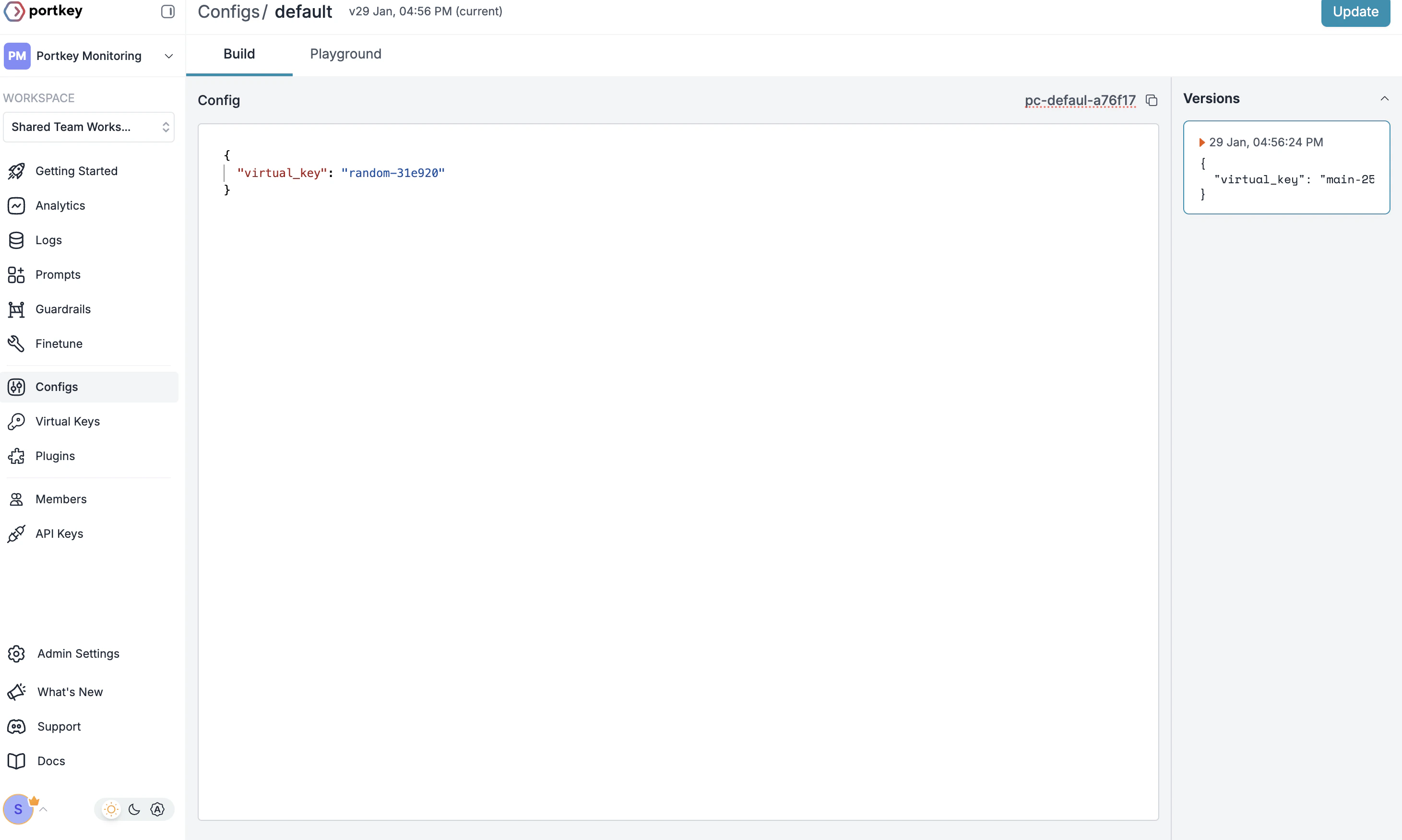
- Go to Configs in Portkey dashboard
- Create new config with:
- Save and note the Config name for the next step
This basic config connects to your virtual key. You can add more advanced portkey features later.
3
Configure Portkey API Key
Now create Portkey API key access point and attach the config you created in Step 2: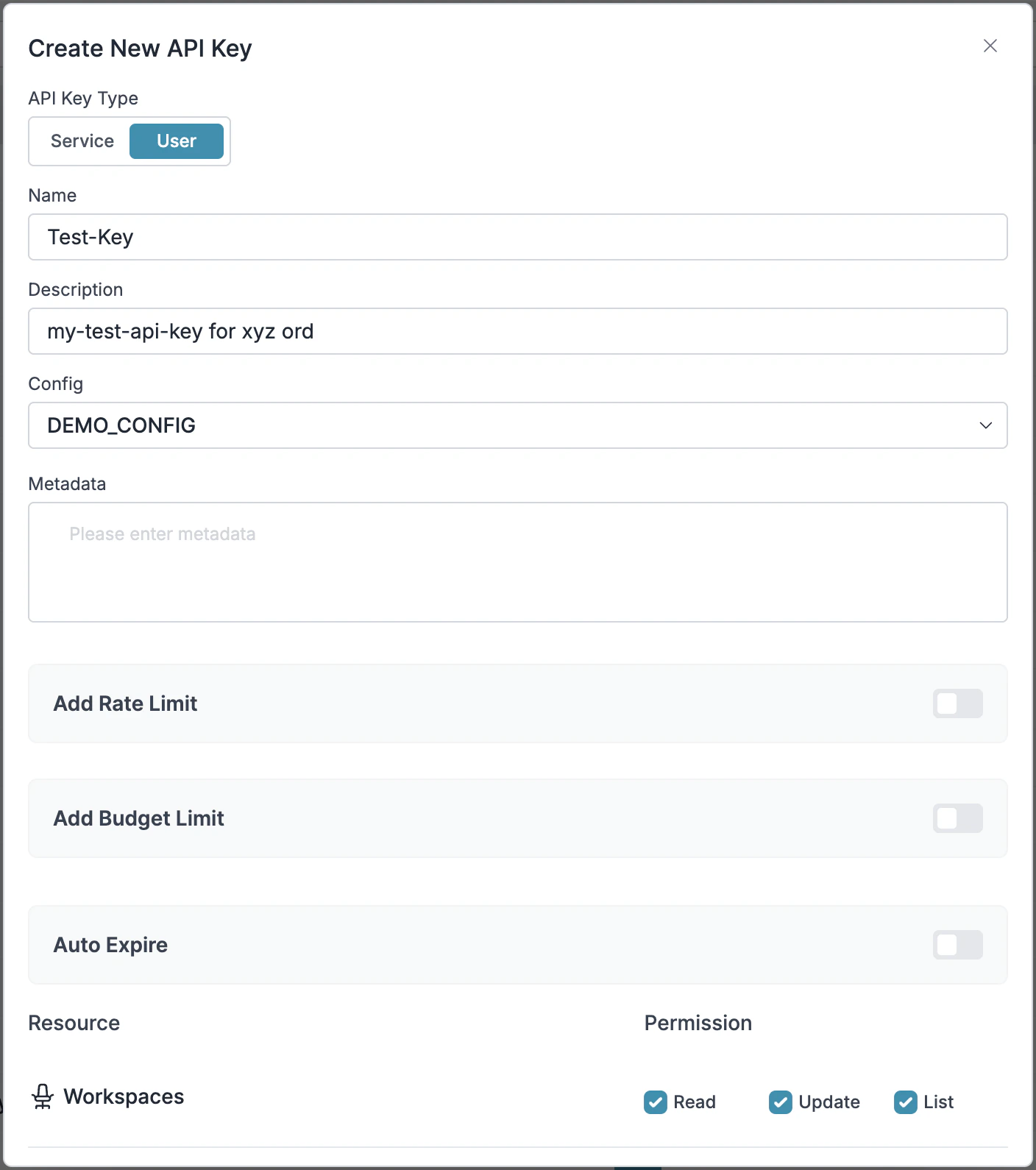
- Go to API Keys in Portkey and Create new API key
- Select your config from
Step 2 - Generate and save your API key
Save your API key securely - you’ll need it for Roo integration.
2. Integrate Portkey with Roo
Now that you have your Portkey components set up, let’s connect them to Roo. Since Portkey provides OpenAI API compatibility, integration is straightforward and requires just a few configuration steps in your VS Code settings.You need your Portkey API Key from Step 1 before going further.
Opening Roo Settings
- Open VS Code with Roo installed
- Click on the Roo icon in your github activity bar
- Click on the settings gear icon ⚙️ in the Roo tab
Method 1: Using Default Config (Recommended)
This method uses the default config you created in Portkey, making it easier to manage model settings centrally.- In the Roo settings, navigate to Providers
- Configure the following settings:
- API Provider: Select
OpenAI Compatible - Base URL:
https://api.portkey.ai/v1 - OpenAI API Key: Your Portkey API key from the setup
- Model:
dummy(since the model is defined in your Portkey config)
- API Provider: Select
Using a default config with
override_params is recommended as it allows you to manage all model settings centrally in Portkey, reducing maintenance overhead.Method 2: Using Custom Headers
If you prefer more direct control or need to use multiple providers dynamically, you can pass Portkey headers directly:-
Configure the basic settings as in Method 1:
- API Provider:
OpenAI Compatible - Base URL:
https://api.portkey.ai/v1 - API Key: Your Portkey API key
- Model ID: Your desired model (e.g.,
gpt-4o,claude-3-opus-20240229)
- API Provider:
-
Add custom headers by clicking the
+button in the Custom Headers section:Optional headers:
Custom headers give you flexibility but require updating headers in Roo whenever you want to change providers or models.
3. Set Up Enterprise Governance for Roo
Why Enterprise Governance? When deploying Roo across development teams in your organization, you need to consider several governance aspects:- Cost Management: Controlling and tracking AI spending across developers
- Access Control: Managing which teams can use specific models
- Usage Analytics: Understanding how AI is being used in development workflows
- Security & Compliance: Protecting sensitive code and maintaining security standards
- Reliability: Ensuring consistent service across all developers
Step 1: Implement Budget Controls & Rate Limits
Step 1: Implement Budget Controls & Rate Limits
Step 1: Implement Budget Controls & Rate Limits
Virtual Keys enable granular control over LLM access at the team/developer level. This helps you:- Set up budget limits per developer
- Prevent unexpected usage spikes using Rate limits
- Track individual developer spending
Setting Up Developer-Specific Controls:
- Navigate to Virtual Keys in Portkey dashboard
- Create new Virtual Key for each developer or team with budget limits
- Configure appropriate limits based on seniority or project needs
Step 2: Define Model Access Rules
Step 2: Define Model Access Rules
Step 2: Define Model Access Rules
As your development team scales, controlling which developers can access specific models becomes crucial. Portkey Configs provide this control layer with features like:Access Control Features:
- Model Restrictions: Limit access to expensive models
- Code Protection: Implement guardrails for sensitive code
- Reliability Controls: Add fallbacks and retry logic
Example Configuration for Development Teams:
Configs can be updated anytime to adjust controls without developers needing to update their Roo settings.
Step 3: Implement Developer Access Controls
Step 3: Implement Developer Access Controls
Step 3: Implement Developer Access Controls
Create Developer-specific API keys that automatically:- Track usage per developer with virtual keys
- Apply appropriate configs to route requests
- Collect metadata about coding sessions
- Enforce access permissions
Step 4: Deploy & Monitor
Step 4: Deploy & Monitor
Step 4: Deploy & Monitor
After distributing API keys to your developers, your enterprise-ready Roo setup is ready. Each developer can now use their designated API keys with appropriate access levels and budget controls.Monitor usage in Portkey dashboard:- Cost tracking by developer
- Model usage patterns
- Code generation metrics
- Error rates and performance
Enterprise Features Now Available
Roo now has:- Per-developer budget controls
- Model access governance
- Usage tracking & attribution
- Code security guardrails
- Reliability features for development workflows
Portkey Features
Now that you have enterprise-grade Roo setup, let’s explore the comprehensive features Portkey provides to ensure secure, efficient, and cost-effective AI-assisted development.1. Comprehensive Metrics
Using Portkey you can track 40+ key metrics including cost, token usage, response time, and performance across all your LLM providers in real time. Filter these metrics by developer, team, or project using custom metadata.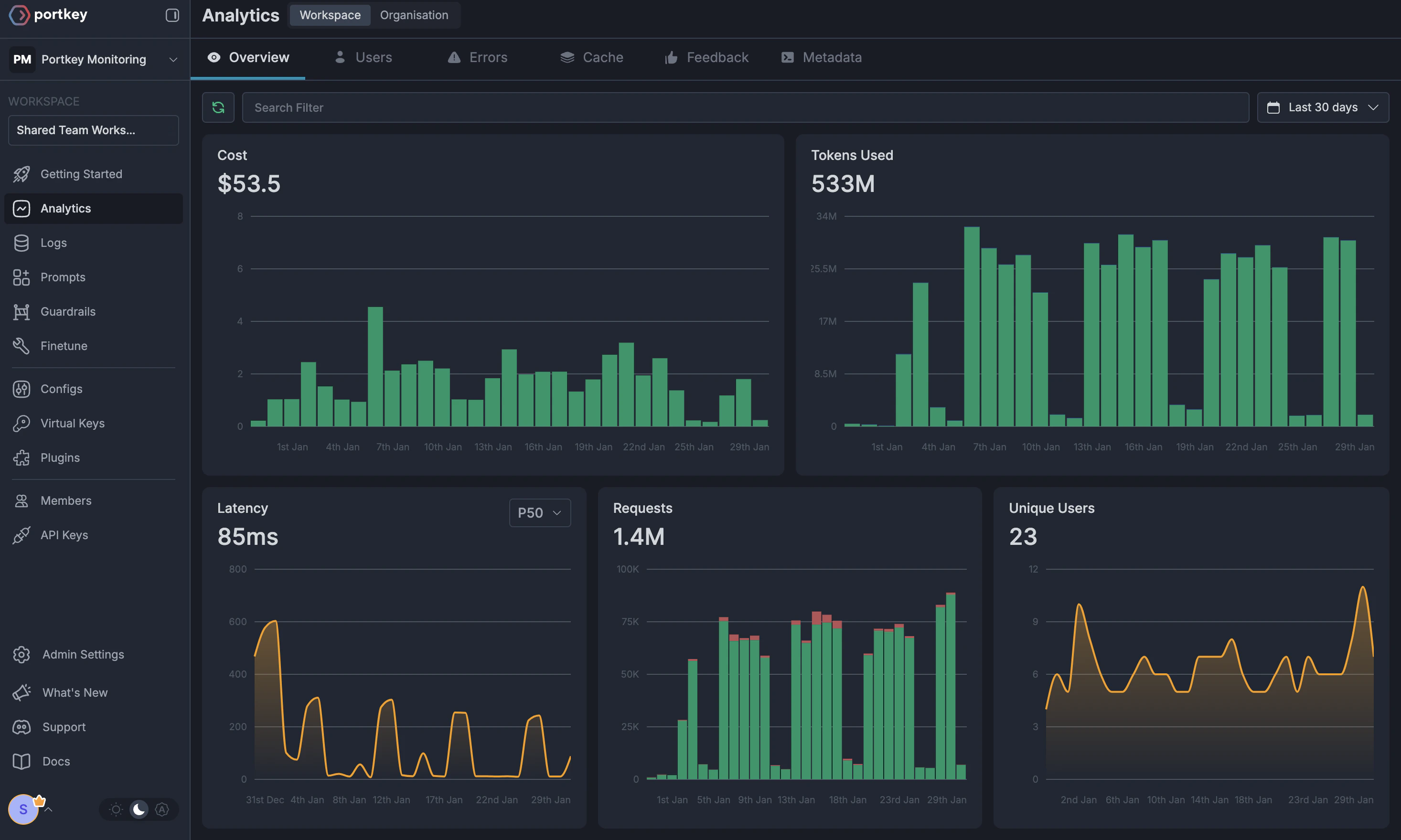
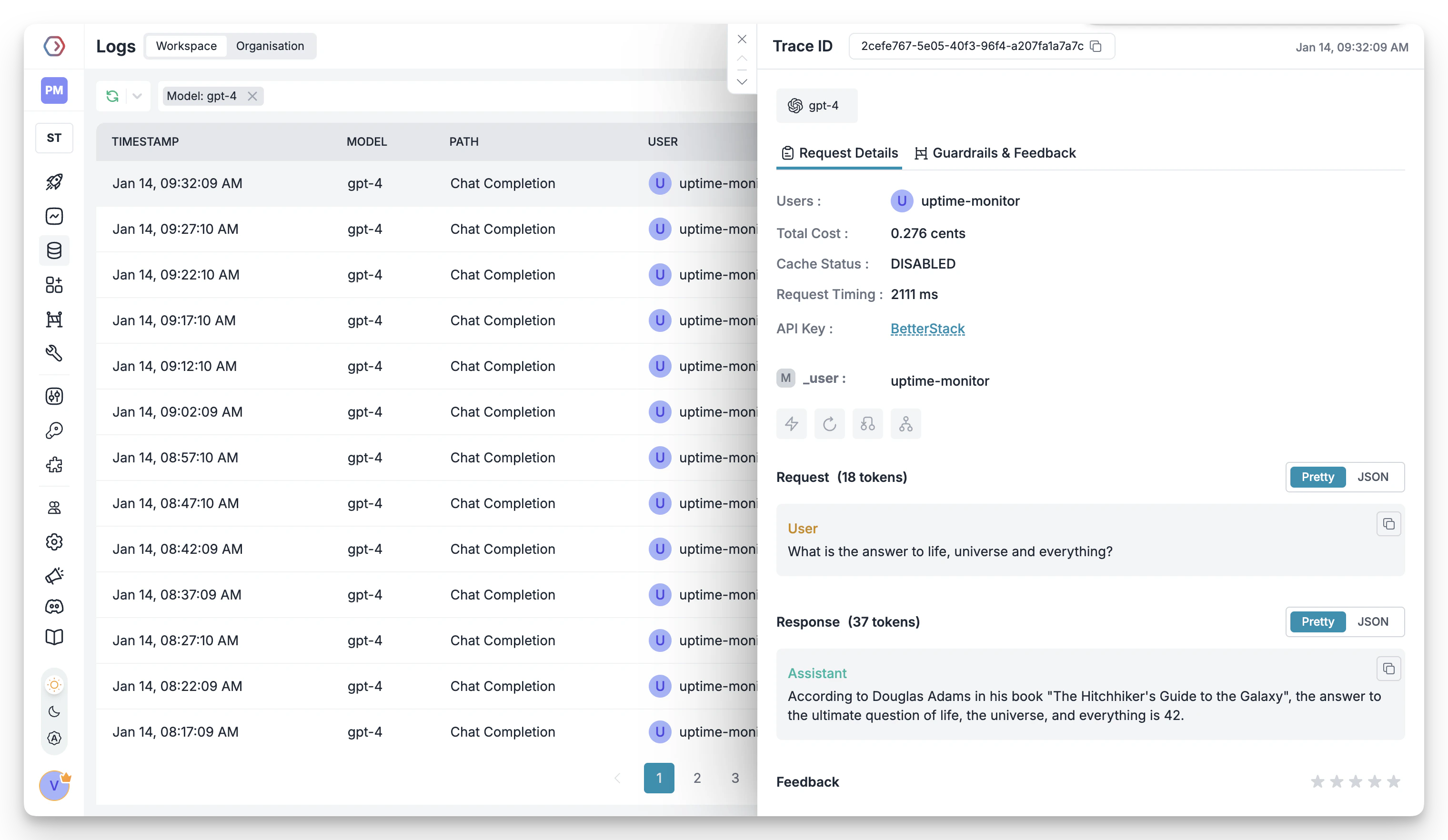
2. Advanced Logs
Portkey’s logging dashboard provides detailed logs for every request made by Roo. These logs include:- Complete request and response tracking
- Code context and generation metrics
- Developer attribution
- Cost breakdown per coding session
3. Unified Access to 250+ LLMs
Easily switch between 250+ LLMs for different coding tasks. Use GPT-4 for complex architecture decisions, Claude for detailed code reviews, or specialized models for specific languages - all through a single interface.4. Advanced Metadata Tracking
Track coding patterns and productivity metrics with custom metadata:- Language and framework usage
- Code generation vs completion tasks
- Time-of-day productivity patterns
- Project-specific metrics
Custom Metadata
5. Enterprise Access Management
Budget Controls
Set and manage spending limits per developer or team. Prevent budget overruns with automatic cutoffs.
Single Sign-On (SSO)
Enterprise-grade SSO integration for seamless developer onboarding and offboarding.
Organization Management
Hierarchical structure with teams, projects, and role-based access control for development organizations.
Access Rules & Audit Logs
Comprehensive audit logging for security compliance and code generation tracking.
6. Reliability Features
Fallbacks
Automatically switch between models if one fails, ensuring uninterrupted coding.
Conditional Routing
Route requests based on code complexity or language requirements.
Load Balancing
Distribute requests across multiple API keys or providers.
Caching
Cache common code patterns to reduce costs and improve response times.
Smart Retries
Automatic retry handling for failed requests with exponential backoff.
Budget Limits
Enforce spending limits to control development costs.
7. Advanced Guardrails
Protect your codebase and enhance security with real-time checks on AI interactions:- Prevent exposure of API keys and secrets
- Block generation of malicious code patterns
- Enforce coding standards and best practices
- Custom security rules for your organization
- License compliance checks
Guardrails
Implement real-time protection for your development environment with automatic detection and filtering of sensitive code, credentials, and security vulnerabilities.
FAQs
How do I track costs per developer?
How do I track costs per developer?
Portkey provides several ways to track developer costs:
- Create separate Virtual Keys for each developer
- Use metadata tags to identify developers
- Set up developer-specific API keys
- View detailed analytics in the dashboard
What happens if a developer exceeds their budget?
What happens if a developer exceeds their budget?
When a developer reaches their budget limit:
- Further requests will be blocked
- The developer and admin receive notifications
- Coding history remains available
- Admins can adjust limits as needed
Can I use Roo with local or self-hosted models?
Can I use Roo with local or self-hosted models?
Yes! Portkey supports local models through Ollama and other self-hosted solutions. Configure your local endpoint as a custom provider in Portkey and use it with Roo just like any other provider.
How do I ensure code security with AI assistance?
How do I ensure code security with AI assistance?
Portkey provides multiple security layers:
- Guardrails to prevent sensitive data exposure
- Request/response filtering
- Audit logs for all interactions
- Custom security rules
- PII detection and masking
Next Steps
Join our CommunitySchedule a Demo
Schedule a 1:1 call with our team to see how Portkey can transform your development workflow with Roo. Get personalized recommendations for your team’s specific needs.
For enterprise support and custom features for your development teams, contact our enterprise team.